To redeem an international Nintendo Switch eShop download code, you require a Nintendo account that has the same region as the download code. This means, if your download code is a Japanese imported download code, you will require a Japan region Nintendo account.
Creating a Nintendo account for any region is free and easy, there are no special requirements to create an account in a different region.
Once the game is downloaded, any user on the Nintendo Switch console can play the game. However, the purchase will be tied to the Nintendo Account that redeemed the eShop code, to download this game on any other Nintendo Switch console you will need to sign into the corresponding Nintendo Account.
Note: This article only applies to redeeming Nintendo Switch eShop digital download codes, physical game cartridges are not region-locked and can be played on any Nintendo Switch game console.
Steps
Create a Nintendo Account
- Go to https://accounts.nintendo.com/register to begin the process of signing up
- Fill out all the necessary details such as your nickname, email address and password
Note: You will need a different email address for each account, you can not reuse the same email address for accounts in different regions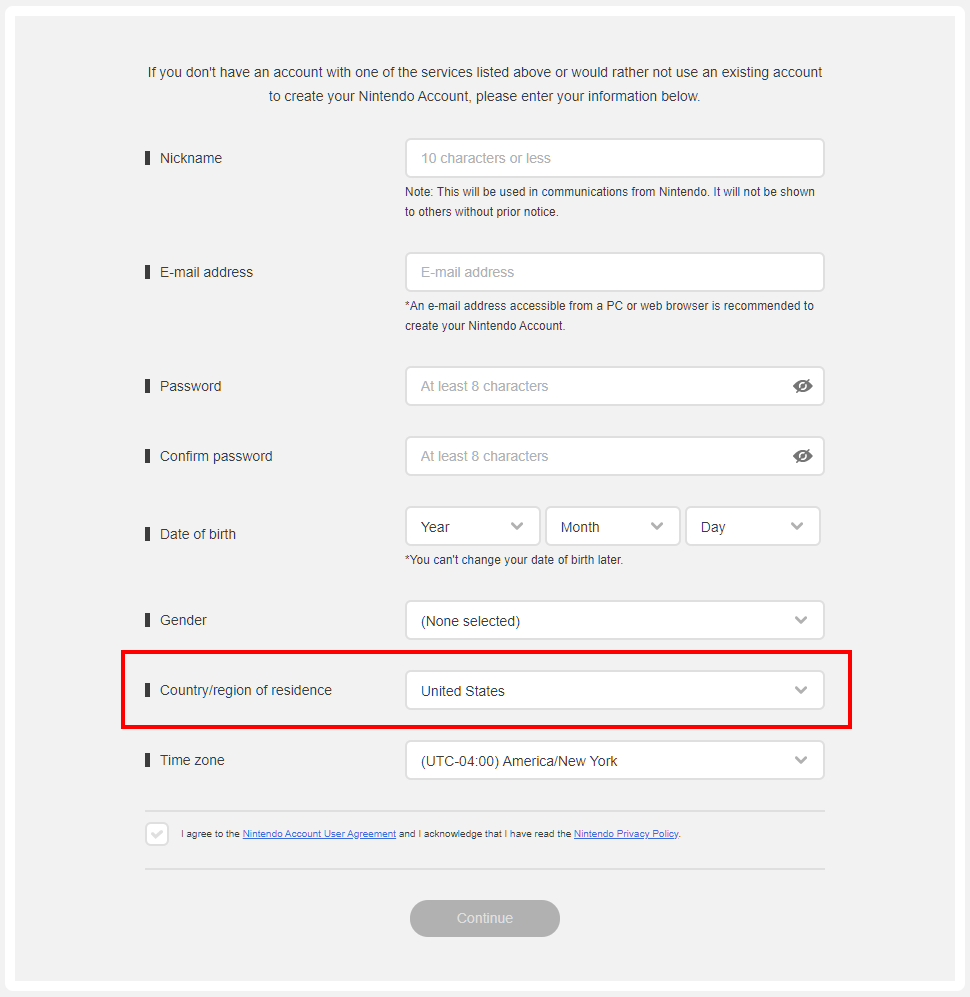
- In the "Country/region of residence" make sure you sent this to the country or region that matches the region of your imported title
- Nintendo will email you a verification code, complete the verification process to activate the new Nintendo account
Add a new user to the Nintendo Switch console
- Select “System Settings” on the HOME Menu.
- Scroll down to highlight “Users,” then select “Add User.”
- Click “Next.”
- Select the icon you would like to have associated to your account.
- Once you have selected a character, enter a nickname when prompted. Select “OK.”
- Select “OK” again to confirm.
- At this point, you will be given the option to link a Nintendo Account to your user account.
Link a Nintendo Account
- Select “Sign In and Link” to link an existing Nintendo Account.
- Sign in using the email address you used above
- You will receive a confirmation message that your Nintendo Account is now linked to your sign-in account. Click “OK” to return to the System Settings.
Redeeming the eShop download code
- Open the eShop app
- You will be prompted to select which user is opening the eShop, select the correct user for the eShop region you are redeeming the code for
- Select “Redeem Code” on the left side of the screen.
- Enter the 16-character download code.
- Some retailer cards for Nintendo Switch software will include both a Control Number and a Download Code. Make sure that you are entering the Download Code (usually begins with a B, no hyphens in the number) and not the Control Number (usually begins with an S, has hyphens).
- Any letters and symbols not used with prepaid codes (i.e. O, I, Z, commas, hyphens, etc.) will be disabled from the on-screen keyboard.
- Select “Confirm”. The software will begin downloading once the code is confirmed.
- The software icon will appear on the HOME Menu, with a download status bar. The status bar will disappear once the game download is complete.